Capture, Plan, Execute, Refine: My Knowledge Work System
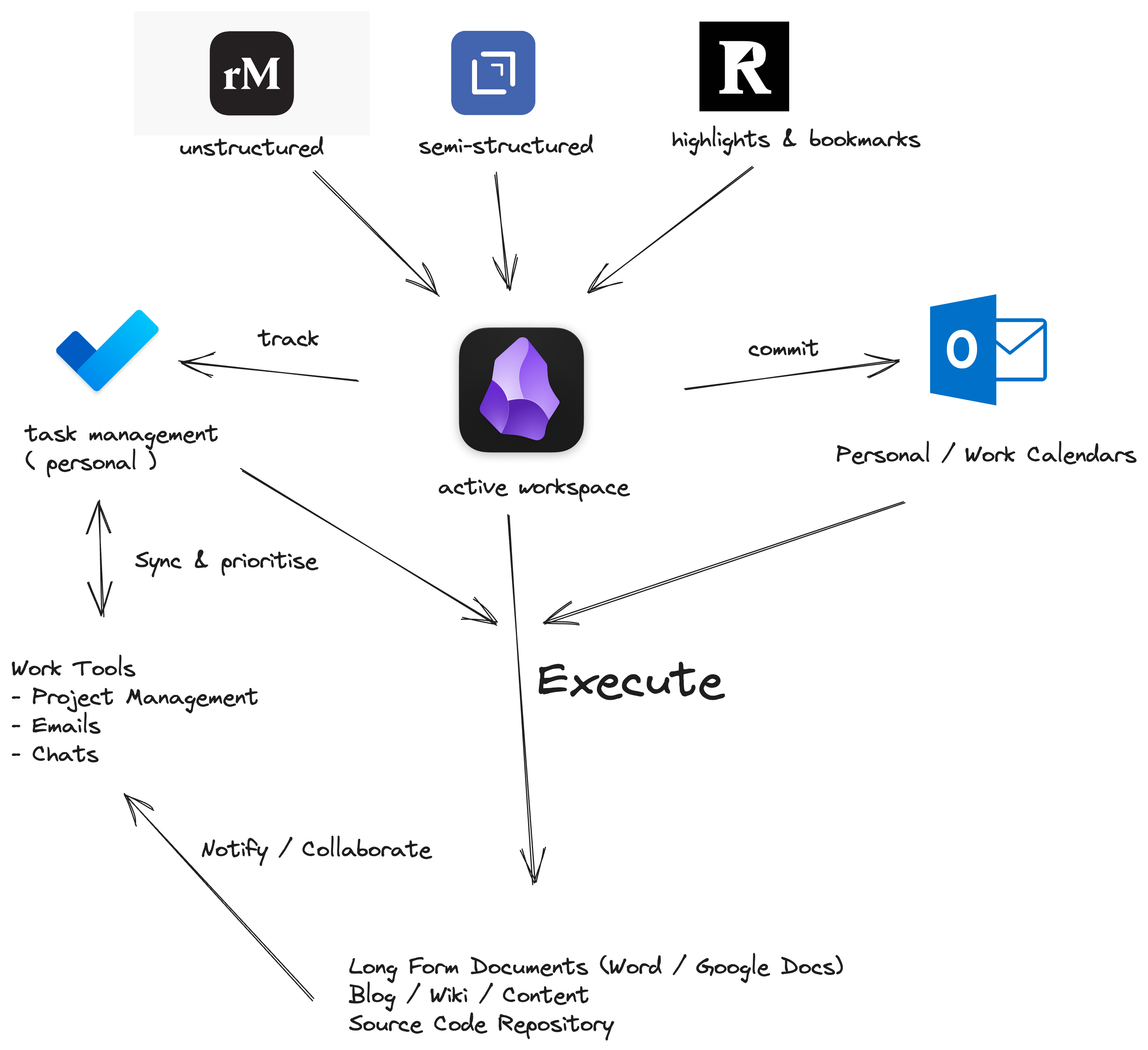
Knowledge work leaks. Ideas show up in the shower, decisions get made in meetings nobody wrote down, and the article you highlighted last month is gone when you need it. Most productivity advice answers this with a single app, which I think is the wrong unit of change. What helps is a workflow: a small number of stages, each with one clear home, so you always know where a thought goes next.
Mine has four stages: capture, plan, execute and refine. The tools matter less than the boundaries between them, so for each stage I’ll explain what I use and why it earns its place.
Capture: get it out of your head
Capture is about speed and low friction, not structure. If capturing a thought takes more effort than the thought is worth, you’ll skip it, and that’s how ideas die. I split capture by how formed the idea already is.
Unstructured ideas go on paper (or close to it)
Every project or task I take on starts as a rough idea, and rough ideas need somewhere messy to live. I use a reMarkable tablet as a digital scratchpad for sketching early versions of a concept. At this stage I’m not after polish or structure; I want the ideas to flow. What I value is that it’s an undistracting device. There’s no inbox and nothing pinging me, so I stay in the problem instead of drifting into email.
Semi-structured thoughts go into Drafts
When a thought already has some shape, such as a task, a sentence for a blog post or a follow-up for a colleague, I use the Drafts app. It opens straight to a blank note, which makes it ideal on a commute, between meetings, or anywhere away from my desk. The point is to capture first and decide where it belongs later.
Reading goes through Readwise
A large part of knowledge work is consuming other people’s thinking: books, articles, papers, documentation. Readwise pulls highlights from those sources into one place, so key points stop being scattered across a Kindle, a browser and a stack of PDFs. Having them in one place also helps me remember and understand what I’ve read, because I’m revisiting highlights instead of rereading whole pieces. Readwise also has an official Obsidian export, which matters because it means highlights end up next to the rest of my notes rather than in another silo.
Meetings get captured live, in Obsidian
Meetings are a big part of my capture process, and my approach to them has changed over the years. I’ve shifted from aggressive participation to active listening. Listening well and writing well turn out to be the same skill: if you’re busy composing your next point, you aren’t capturing anything.
During a meeting I record five things:
| What I capture | Why it matters later |
|---|---|
| New ideas | Raw material for future work or writing |
| Problems | The things people actually care about, in their own words |
| Solutions | Options already on the table, so nobody re-proposes them |
| Anecdotes | Stories and examples that make a point land |
| Action items | Commitments, which feed straight into planning |
These go straight into Obsidian, using a template I’ve customised for the project in question. Obsidian’s built-in Templates core plugin is enough for this. The template means I don’t waste the first five minutes of a meeting deciding how to structure notes, and every meeting note for a project has the same shape when I search it later.
Plan: turn captured items into commitments
Capture gives you a pile; planning turns the pile into tasks, dates and goals. This stage is where abstract ideas become concrete. For me it comes down to two things: tracking tasks and scheduling them.
Task tracking: Microsoft To Do
For tasks I use Microsoft To Do. It’s simple, it’s free, and it has been part of my workflow for several years. I don’t need dependency graphs or custom fields for personal task management. I need one list that holds both personal and work responsibilities, so nothing falls through the gap between two systems. To Do does that well.
My rule is that the task list is a holding area, not a promise. A task that sits in To Do without a time attached is something I might do.
Scheduling: Microsoft Outlook
The promise lives in Microsoft Outlook. Outlook pulls multiple calendars into one view, which gives me a complete picture of my commitments across work and home. Every task I commit to gets a block in Outlook. The rule is simple: if it’s not on the calendar, it probably isn’t going to happen.
This is the step most people skip, and in my view it’s the one that matters most. A to-do list has no sense of capacity. A calendar does. When the week is full, it’s obvious, and you’re forced to make a trade-off now instead of discovering it on Friday afternoon. I wrote more about the weekly side of this in planning your week ahead.
Execute: where the work happens
Execution is where ideas turn into deliverables, and for the past two years Obsidian has been my main tool for it. It’s where I draft blog posts, outline content and pull research together from different sources.
I didn’t land on it straight away. I started with Roam Research, moved to Obsidian, tried Logseq, and came back to Obsidian. If you’re comparing note tools, my advice is not to treat this as a feature checklist. They all handle linked notes. Pick the one you’ll actually open every day, and be wary of switching more often than your notes can survive. Every migration costs you time and some broken structure.
Obsidian is the workshop, not the final destination
Once a draft is ready, it moves to wherever it needs to be refined and published: long-form documents for work projects, internal wikis for team collaboration, blogs for personal or professional writing, and other relevant outlets. Obsidian is where thinking happens, not where finished work lives.
Code and images need more care. I’ll draft and organise code snippets in Obsidian, but the actual solution files belong in a proper editor such as Visual Studio, under source control. The balance I aim for is convenience versus context. It’s useful to have relevant snippets at hand in your notes, but you don’t want to duplicate your codebase there. Once you have two copies, one of them is wrong.
The same goes for images and other media. I reference and organise them in Obsidian, but the files themselves are stored and edited in the right tools. Keeping these boundaries clear is what makes the handover from idea to delivered work smooth.
When this setup isn’t the right fit
This many tools is overkill for some people. If most of your work happens inside one team’s systems, such as a Jira board, a shared OneNote or a Teams channel, a parallel personal system can become a second job of syncing. In that case I’d keep only capture and calendar personal, and let the team’s tools handle planning and execution. The stages are what matter. You can collapse several of them into one app if that’s what your work needs.
Refine: improve the system, don’t perfect it
No workflow is perfect. Sometimes the system won’t deliver what you need, a better tool will come along, or your priorities and preferences will change. All of these are good reasons to adjust it.
The goal isn’t a perfect system. It’s to keep improving the one you have. That means regularly reflecting on how your workflows and processes are going, noticing where they need improvement, and being willing to make the change, even when that means admitting the tool you championed six months ago isn’t working.
One of the most effective ways I’ve found to do this is to ask other people for feedback. Colleagues, mentors and other professionals in your field will spot gaps you’ve stopped seeing, because they don’t share your habits.
The takeaway
If you take one thing from this, make it the boundaries, not the apps. Have one place for messy ideas, one for quick notes, one for what you read, one for tasks, and one calendar that holds every real commitment. Once each stage has a single home, you’ll spend less effort remembering where things are and more effort doing the work.